Install
- Download the
.exeinstaller (or the.msi). - Windows SmartScreen may warn because the app is not code-signed yet. Click More info, then Run anyway.
- Open Vuoom from the Start menu.
Your first take
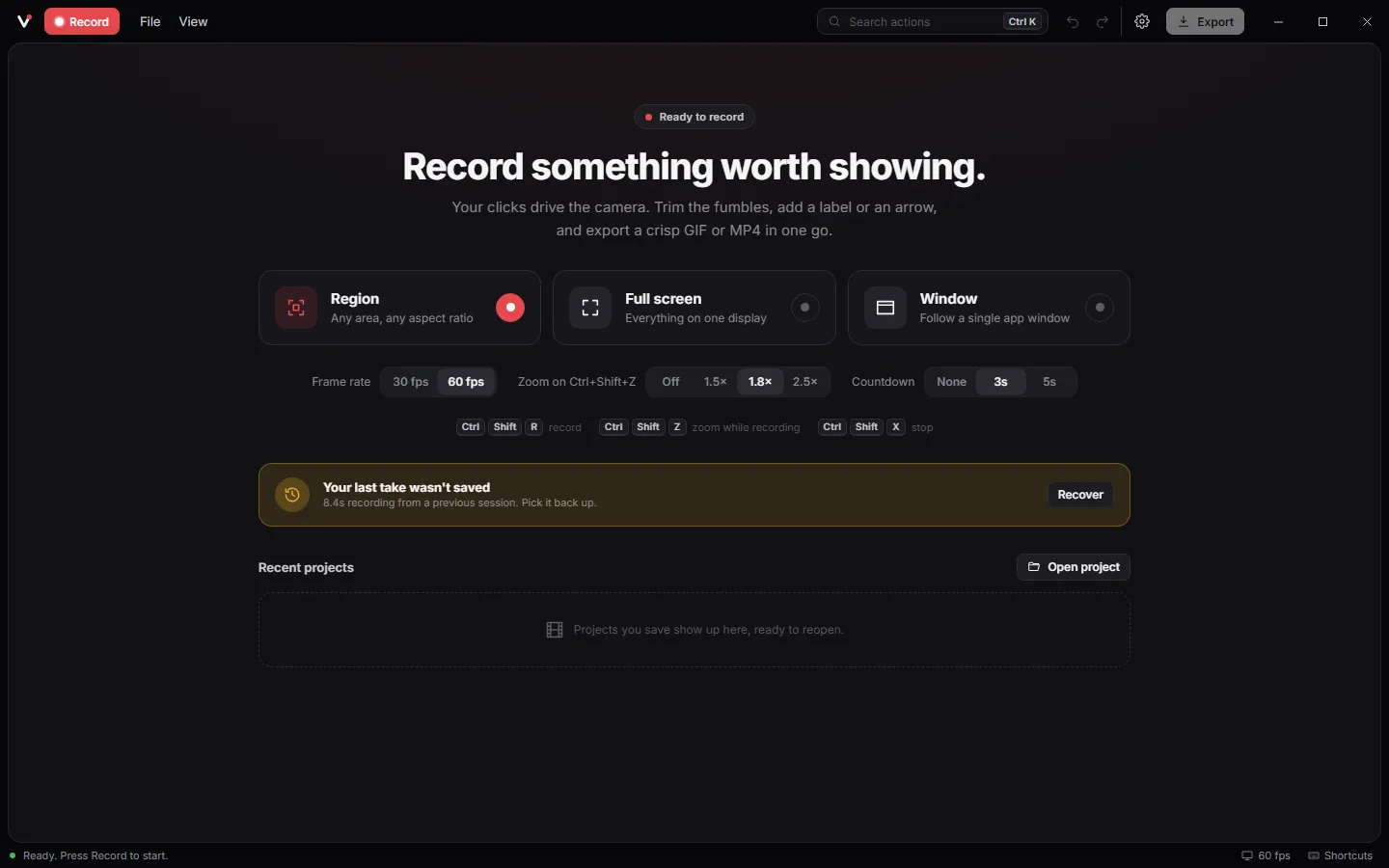
- On the home screen choose Region, Full screen or Window. Set the frame rate, zoom strength and countdown right there.
- Press Record. Drag the region, or pick an aspect preset: 16:9, 9:16, 1:1 or 4:5.
- Turn on the microphone, system sound or webcam if you want them, then press Start.
- Work as normal. Pause any time. Press
Ctrl+Shift+Xto stop.
Zooms
While recording, press Ctrl+Shift+Z to glide the camera into your pointer, and again to pull back out. You do not have to: after you stop, Auto zooms in the Clip tab can plan zooms from your clicks at any strength.
In the editor every zoom is a red block on the Zoom track. Select one to change its strength, its aim (follow the pointer or lock a spot) and its feel: Smooth, Snappy or Slow. Press Z to add one at the playhead.
Editing
- Trim the ends with
IandO, or drag the trim handles. - Cut a fumble with
C. Speed up a slow part withX. - Skim idle in the Clip tab plays dead stretches at 2 to 8 times speed.
- Crop right on the video with aspect locks and thirds guides.
- Frame the video with padding, corners and a shadow on a backdrop, or your own picture.
- Everything undoes with
Ctrl+Z.
Annotations
Pick a tool from the rail and draw on the video: text (T), arrows (A), a pen and marker (P), shapes (S), highlights (H), a spotlight that dims everything else (L) and blur masks for secrets (M). Each gets its own bar on the timeline with colour, opacity and fades.
Audio and webcam
Microphone and system sound record to separate tracks with live meters. On the timeline set volume or mute per track. In the inspector, Remove noise cleans fan hum and hiss, and Even out volume levels a voice that drifts from the mic. The webcam bubble can move to any corner, change shape and size, and mirror, all after recording.
Captions
Record with your microphone, then click Make captions. The first time, Vuoom downloads a 57 MB speech model once; after that captions are made offline on your PC with whisper.cpp. Fix any word in the inspector, drag a caption to retime it, and choose top or bottom and a size.
Export
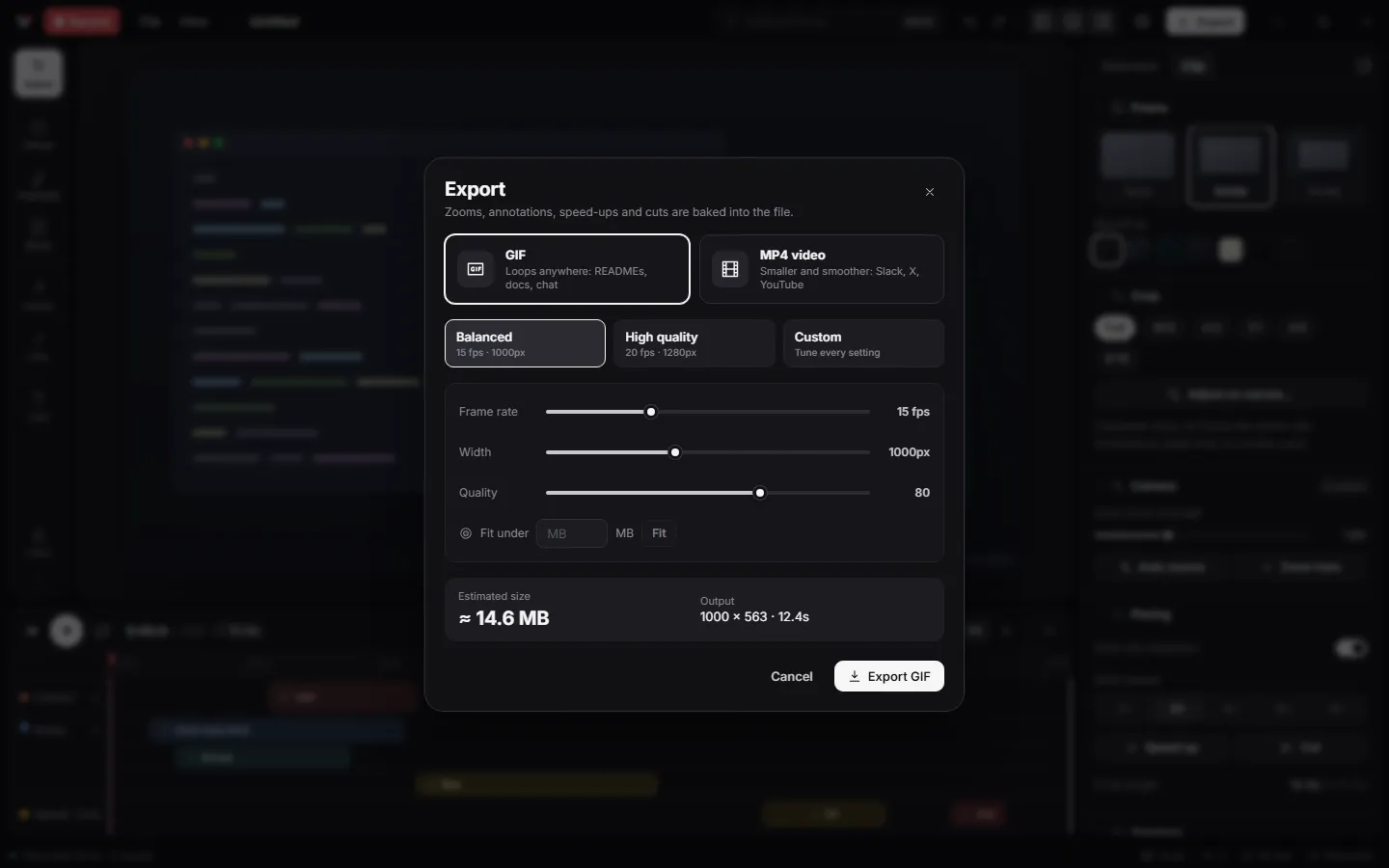
Press Ctrl+E. Choose GIF or MP4, a preset, and watch the size estimate. Use Fit under to keep a GIF below a limit such as GitHub's 10 MB. Press Copy to paste the file straight into GitHub, Slack or a document, or reveal it in Explorer. Captions can be burned in or saved as .srt.
Projects and recovery
Press Ctrl+S to save a .vuoom project; it saves in seconds because the compressed frames are copied, not re-encoded. Recent projects appear on the home screen. Frames are written to disk while you record, so if Vuoom or Windows crashes, the next launch offers to recover the take.
Troubleshooting
A yellow border appears around the window I record
That is Windows 10 marking a captured window. Windows 11 records without it. Full-screen capture is borderless on both.
The GIF is too big
Lower the width or frame rate, trim or skim idle parts, or set Fit under. MP4 is usually far smaller for the same video.
Something else
Check the FAQ, ask in Discussions, or report a bug with your Windows version and steps to reproduce. See all keyboard shortcuts.